
Remote Video Session Information
We’re excited to have you join us for your upcoming video recording session.
This page will guide you through everything you need to know to prepare and get the most out of your recording experience.
Here is a short checklist ahead of our call.
Before You Start.
Preparing Your Equipment & Environment
Record in a quiet room
Mute notifications
Set-up good lighting
Position your camera at eye level (maybe give the lens a quick clean)
What Browser to use.
Riverside FM works best on Google Chrome (latest version).
Avoid using other browsers like Safari or Firefox, as they may not fully support all features.
Please do not open any other browsers during our call.
Check camera & microphone permissions before the session, ensure Google Chrome is allowed to access your camera and microphone:
Go to chrome://settings/content
→ Select Camera and Microphone
→ Ensure both are set to “Allow.”
Plug In Your Laptop to mains power.
Make sure your laptop is plugged into a power source.
Recording video can drain your battery quickly, and unexpected shutdowns can ruin your session.
Wear Headphones.
Wearing headphones prevents audio feedback and echo, which improves the audio quality for both you and other participants.
Use over-ear or in-ear headphones with a built-in microphone if possible, AirPods will work - just make sure they are charged up!
Use an External Microphone (Optional but Recommended)
If available, use an external microphone for the best sound quality.
USB microphones or XLR microphones with an audio interface work well.
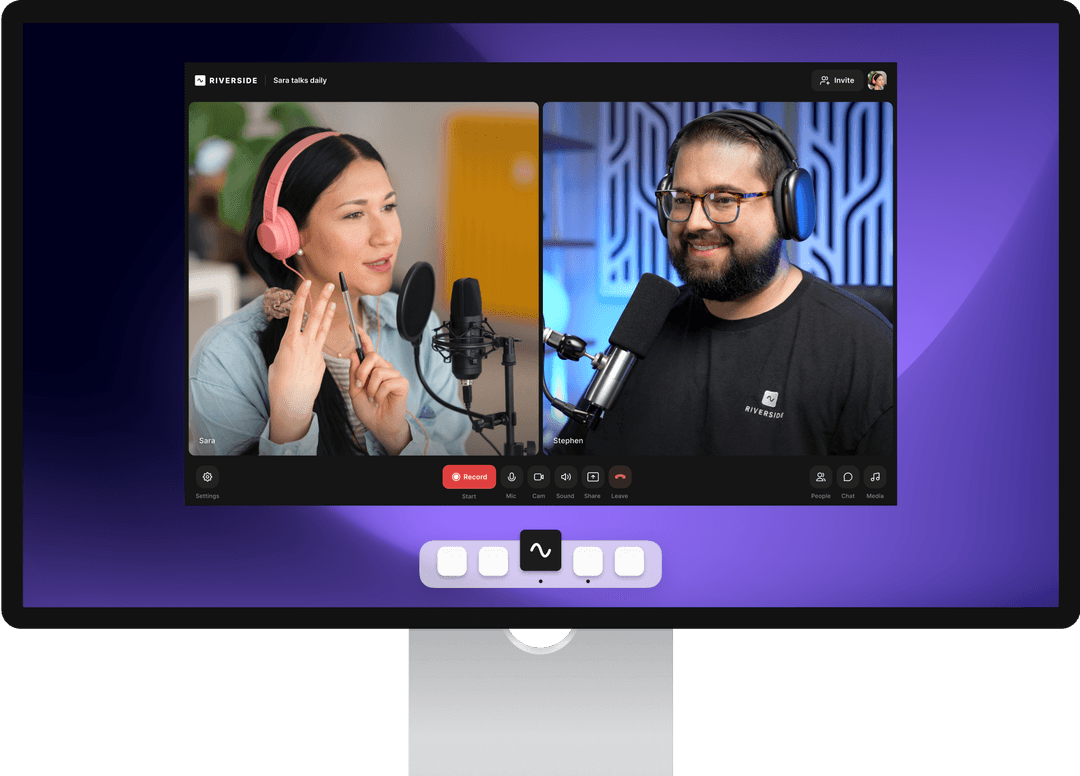
Advanced Settings
You can use the Riverside iOS app as a guest as it offers a seamless, high-quality recording experience without needing to sign up or download complex software, just by clicking an invite link, ensuring professional video/audio (even from your phone) and making your participation easy, especially if you're not tech-savvy.
Key Benefits for Guests:
No Sign-Up Needed: You just join with a link, no account creation or login required.
High-Quality Recording: Riverside records your audio/video locally, so even bad internet doesn't ruin the quality; you get studio-grade files.
Mobile Optimsation: The iOS app lets you use your powerful phone camera for better video than many laptops.
Screen Sharing: You can easily share your screen or specific windows if needed for the recording.
Simple Workflow: You just need to grant camera/mic access and stay in the session until the upload finishes at the end.